
.png "Video Monetization with TrafficStars")
Your visitors do more than press play. They scroll through feeds, browse pages, watch videos, and move on to the next piece of content. Each moment creates another opportunity to earn.
TrafficStars’ video formats help you make the most of these moments: Video Pre-roll before content starts, Video Shorts within a vertical scrolling feed, Video Outstream inside page placements, and Video Slider as visitors continue browsing.
Use them together to reach more of the visitor journey and build more earning opportunities into each session. With TrafficStars’ spot creation flow, getting started is simple. Video Pre-roll and Video Shorts live under In-stream, while Video Outstream is available through MasterSpot, and Video Slider through OneTag.
Here’s how to choose your format, create your spots, and build a setup that works together.
Have Video Content? Start with In-stream
If visitors come to your website to watch videos, start with the experience they already enjoy.
Video Pre-roll lets you monetize the moment before your video content starts. It’s a natural starting point for websites with a traditional video player.
Video Shorts is designed for vertical, short-form viewing, with full-screen 9:16 video ads that fit into a scrolling video feed.
How to create your spots
- Click Create new in your publisher inventory.
- Select In-stream.
- Enter a spot name and choose one or several websites.
- Select Video Pre-roll or Video Shorts.
- Review the format preferences and ad rules, then save and follow the integration instructions.
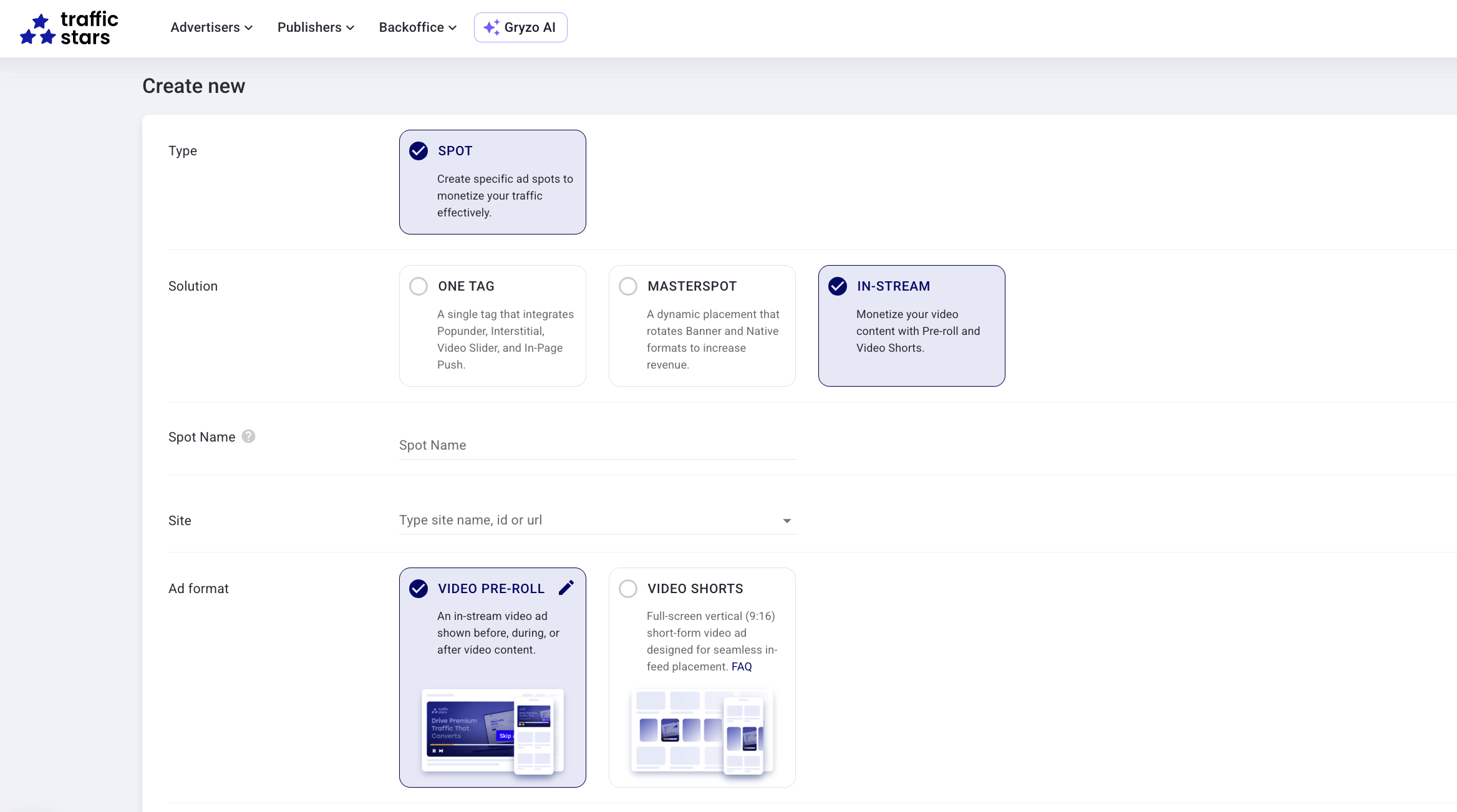
The format settings are kept simple: Pre-roll includes a skip-offset setting, while Video Shorts offers an option to allow horizontal videos.
Try this combination: use Pre-roll for your main video player and Shorts for your vertical feed. Match each format to the section where it belongs, then compare their contribution to your website’s revenue.
Choose MasterSpot for Video Ads Beyond the Player
Video advertising can also earn its place on pages where visitors are browsing rather than watching the videos.
Video Outstream displays video ads outside your content player. With MasterSpot, you have two ways to use it.
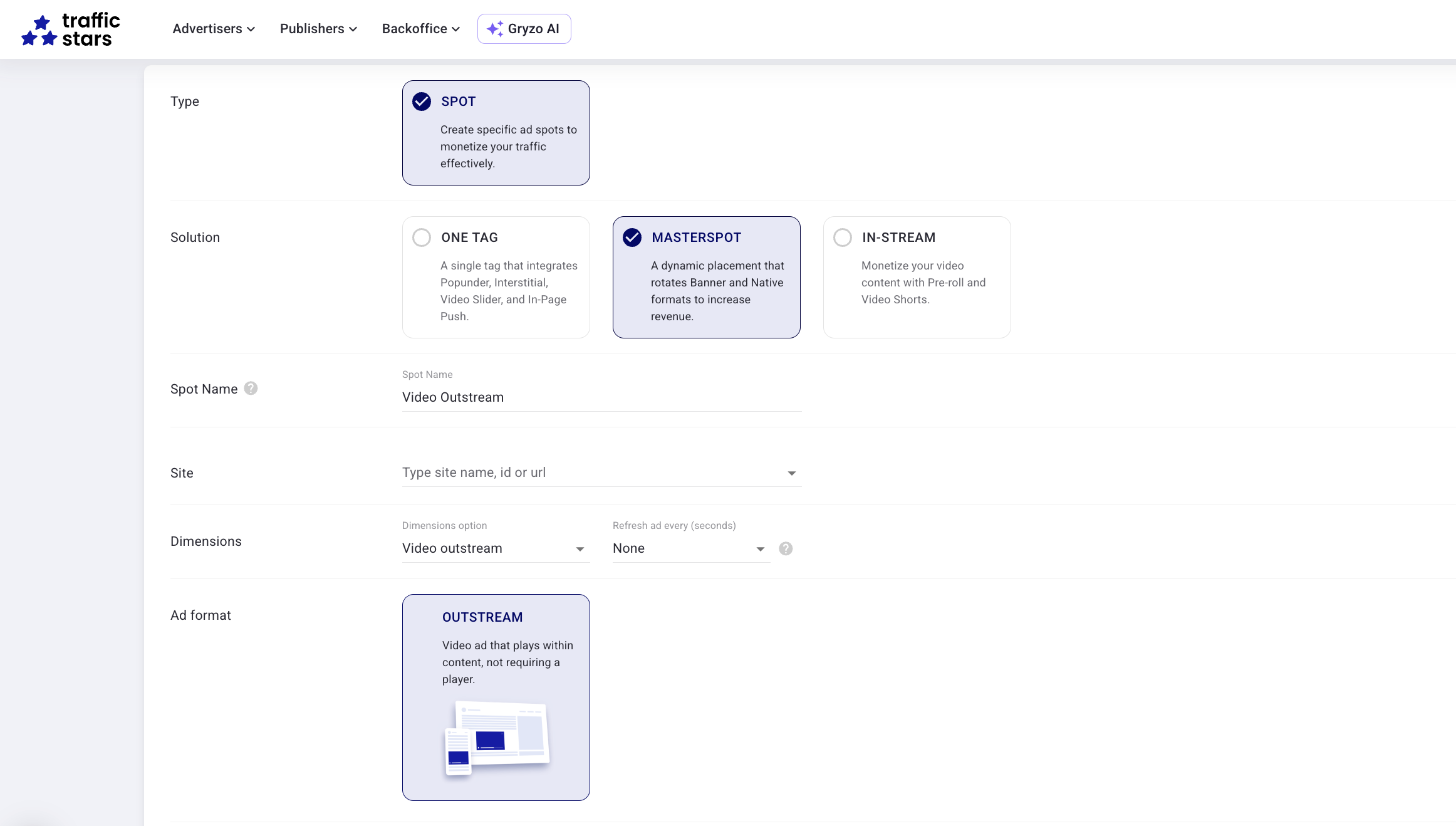
1. Create a dedicated Video Outstream placement
Go to Create new > MasterSpot, enter a name, and select your website or websites. Under Dimensions, choose Video outstream.
This creates a separate MasterSpot dedicated to Video Outstream.
2. Bring Video Demand into Your MasterSpot
Alongside Banner and Native ads, 300×250 and 900×250 MasterSpot placements can also support Video Outstream, bringing more advertiser demand into the same advertising space.
When enabled, eligible video campaigns compete with Banner and Native campaigns for each impression, and MasterSpot serves the highest-value option.
Visit the MasterSpot FAQ for more information.
Create Your Video Slider with OneTag
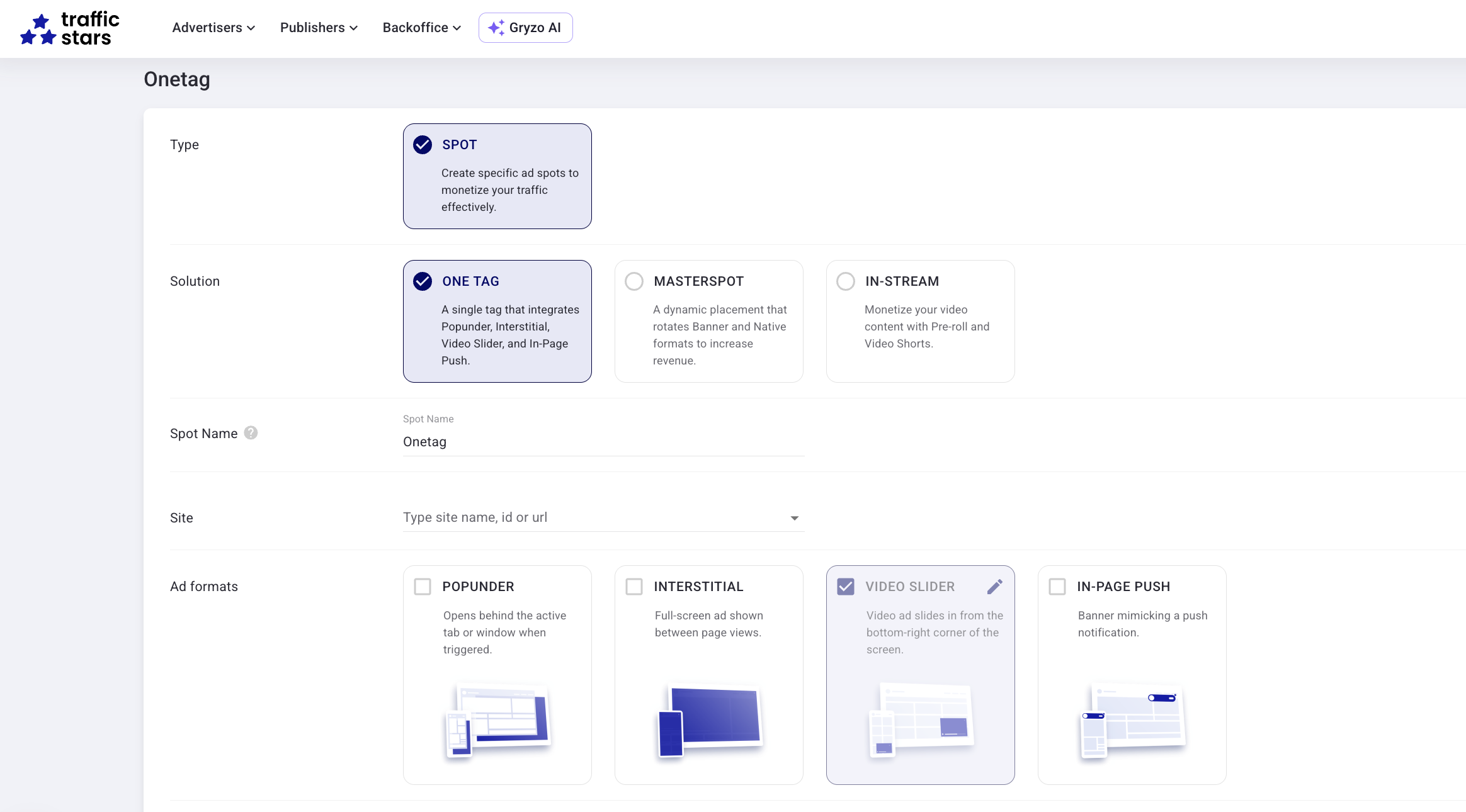
Video Slider displays a video ad in the corner of the screen, without requiring your own content player.
To create it, go to Create new > OneTag, name your setup, select your website or websites, and keep Video Slider enabled. Save your OneTag and install the generated script.
OneTag also includes Popunder, Interstitial, and In-Page Push. You can disable the other formats if you need a Slider-only setup, but we recommend starting with all four and the default settings, then adjusting based on performance and your preferred visitor experience.
The formats monetize different moments during a visit, giving you more opportunities to earn through one integration.
Learn more in OneTag: Get More from Every Visit.
Make Your Video Formats Work Together
You don’t need to use every video format on every page. Start with the way your audience consumes content.
When combining formats, check how they appear together on desktop and mobile. Keep ads clear of navigation and player controls, and adjust timing and frequency so placements don’t compete for attention at the same moment.
Review both individual format performance and overall RPM – revenue per thousand visits. A format’s CPM tells you what its impressions earn; overall RPM helps you assess the complete setup.
Ready to build your setup? Open Publisher Inventory in your TrafficStars dashboard.
Need help with integration? Share our developer documentation with your technical team.
For help with ad formats or setup, ask Gryzo AI directly in your account or contact our Support team.



.png)
.png)
.png)